
Member Online
Member Online is live. Manage your account anytime, anywhere
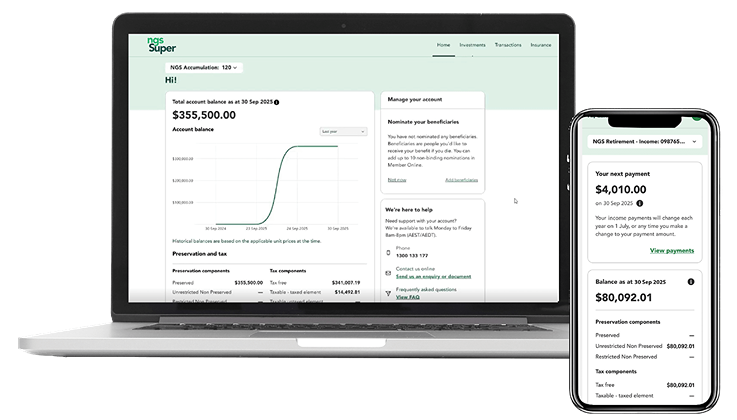
The new Member Online is built for what matters – putting you in control of your super with many features you need in one convenient place.
Whether you’re updating your personal details, checking your balance, finding your BPAY number or generating your Centrelink Schedule, your account information is now at your fingertips anytime, anywhere.
With a streamlined and improved dashboard, more intuitive navigation, and enhanced security, you’ll have a seamless and secure experience to stay on top of what’s important to you.
Learn how to re-registerRe-register for Member Online
How to re-register for Member Online
Important: You’ll need a mobile number and email address recorded on your NGS account (not shared with another NGS member). If you share an email address with other NGS members, only one person can register using that address.
Calling our Helpline on 1300 133 177 lets you update your contact details but does not complete your registration. You’ll still need to follow the steps below afterwards.
Step 1: Go to the registration page
You can access the registration page now or click the link in our email invite. It will also take you directly to the registration page.
Step 2: Enter your details and Member number
Do not include leading zeros in your Member number. You can find your Member number in:
- The email invite we’re sending you, or
- Other NGS communications you may have already received.
Step 3: Check for your verification email
After entering your details, you’ll receive a separate verification email. Open it and click the link inside to continue.
Step 4: Create your password
Follow the simple rules shown to keep your account secure.
Step 5: Complete registration, then log in
Once registration is complete, you’ll be prompted to log in. Use your email address and new password. We’ll send a one‑time code to your mobile phone by SMS. Have it handy to enter when asked.
How to use Member Online
View our step-by-step video tutorials below to get started with using Member Online. Our FAQs tab also has written instructions.
How to re-register for Member Online
Navigating your Member Online dashboard
Finding your BPAY details
Generating Centrelink schedules
Updating your personal details
Viewing and updating your payments
Viewing and updating your withdrawals
Managing your insurance and making changes to your cover
Switching investment options
Playlist: How-To Guides
How to re-register for Member Online
Navigating your Member Online dashboard
Finding your BPAY details
Generating Centrelink schedules
Updating your personal details
Viewing and updating your payments
Viewing and updating your withdrawals
Managing your insurance and making changes to your cover
Switching investment options
Questions about Member Online
Here you’ll find quick answers to common questions about Member Online, including how to get started, managing your NGS account to making the most of the features available on Member Online.
Accessing Member Online
Member Online features
Managing my account
Transactions and payments
Accessing Member Online
How do I access Member Online?
To access your NGS account online via Member Online, visit the registration page. To get started, you’ll need the email address and mobile number you use with NGS and your Member number. You can find your member number in an email we'll be sending you shortly, if you haven't already received it. For help on getting started, learn how to re-register for Member Online.
When will NGS be launching its App?
I’ve received an email to register for Member Online. Is it from NGS Super?
Yes. We’re emailing members during 3-17 December to advise that Member Online is now available. Emails we send you will appear from NGS Super or [email protected]. If you’re unsure about the authenticity of an email, call our Helpline on 1300 133 177 to verify it.
What do I do if I see a spinning wheel after logging in?
This usually means your browser cache needs clearing. Clearing the cache removes stored website data so the page can reload properly. Follow the steps for your browser below, then try logging in again . We also recommend that you log out of each session to ensure your browser is not storing additional website data that could cause login issues.
If the issue continues after clearing your cache, please call our Helpline on 1300 133 177.
On a computer
If you’re using a desktop or laptop, follow the instructions for your browser below.
Google Chrome
- Open Chrome.
- Click the three dots in the top‑right corner.
- Select Settings → Privacy and security → Delete browsing data.
- Choose "Time range: All time."
- Tick “Cookies and other site data”
- Tick "Cached images and files."
- Select "Delete data" to remove stored website data (this will not affect your passwords or bookmarks).
- Close and reopen Chrome, then try logging in again.
Microsoft Edge
- Open Edge.
- Click the three dots in the top‑right corner.
- Select Settings → Privacy, search, and services.
- Under "Clear browsing data," select "Choose what to clear."
- Set "Time range: All time."
- Tick “Cookies and other site data”
- Tick "Cached images and files."
- Select "Clear now."
- Restart Edge and try logging in again.
Safari (Mac)
- Open Safari.
- Click Safari in the top menu → History Preferences (or Settings on newer macOS).
- Click ‘Clear History’
- Choose Clear ‘All History’
- Click ‘Clear History’
- Restart Safari and try again.
- Go to Advanced and enable "Show Develop menu in menu bar."
- From the top menu bar, click Develop → Empty Caches.
- Restart Safari and try again.
On a mobile device
If you’re logging in from a phone or tablet, use the steps for your mobile browser.
Chrome (iPhone or Android)
- Open Chrome.
- Tap the menu (three dots).
- Tap History → Clear browsing data.
- Select "Time range: All time."
- Tick “Cookies, Site Data”
- Tick "Cached images and files."
- Tap "Clear browsing data."
- Restart Chrome.
Safari (iPhone or iPad)
- Open Settings → Safari
- Tap "Clear History and Website Data."
Microsoft Edge (iPhone or Android)
- Open Edge.
- Tap the menu (three lines).
- Click ‘Delete data’
- Select "Time range: All time."
- Click ‘Browsing data’
- Tick “Cookies and other site data
- Tick "Cached images and files."
- Tap "Clear data."
Next step
If you’re still seeing the spinning wheel after completing these steps, please call our Helpline on 1300 133 177 for more support.
When registering, do I need to include the leading zeros in my Member number?
No. When registering for Member Online, you must not include any leading zeros in your Member number.
For example, if your Member number is 123456, you need to enter 123456 during registration.
I’m getting an error message when I try to register. What do I do?
You may be seeing one of the below error messages when you try to register.
| Error message | What you can do |
|---|---|
| Too many attempts. Check you’ve entered your Member number and date of birth correctly. | You can click Go Back to the previous screen and retry your details again. If the issue persists, please call our Helpline. You can always find your Member number in communications we recently sent you. |
| We don’t have enough information to complete your Member Online registration. | Your internet connection may have briefly disconnected. Please check you have a stable internet connection and try again. If the issue persists, it may mean we need more information from you to allow to you to register. Please call our Helpline for support. |
| Link has expired. | To keep your account secure, we need you to verify the email address you use with NGS. To do this, we send you a one-time link to click on – this link expires within 24 hours. If you see this message, you will need to restart the registration process again. Please check your junk mail in case the one-time link was sent there. If you still did not receive an email, please give us a call on our Helpline. |
We’re here to support you with using Member Online. If you’re still having issues registering, please call our Helpline.
I was registered for Member Online before, why do I need to register again?
Why do I need to verify my contact details to register for Member Online?
I didn’t receive my verification code or I can’t access it. What should I do?
If you haven’t received your verification code:
- Check your junk mail in case the email was sent there.
- If you still haven’t received it, try to request a new code.
If you no longer have access to your email address or mobile number, please call our Helpline to update your contact details so you can complete your registration securely.
I received an SMS from NGS but I didn’t try to register. What should I do?
Can Member Online remember my device or keep me logged in on multiple devices?
Do I need to allow cookies to use Member Online?
Can I let my browser save my password for Member Online?
Which browser or device works best for Member Online?
Can I use Member Online on my phone or tablet?
I’m a member living overseas. Can I re-register for Member Online?
Is my username the same as my Member number?
Does Member Online support accessibility tools such as screen readers?
I can’t log in - what should I check first?
If you’re having trouble logging in, check that:
- You’re using the correct email address and password.
- Your web browser is up to date.
- You have a stable internet connection.
If you have forgotten your password, select ‘Forgot password?’ on the login page to reset it. If you still can’t access your account, please call the Helpline.
Why did Member Online log me out automatically?
For your security, Member Online logs you out after a period of inactivity, or when you update details such as your email address, mobile number or password. This helps protect your account and personal information.
For email address, mobile number or password changes, please follow the verification instructions and once complete, you can simply log in again using your updated details to continue where you left off.
Member Online features
What can I see on Member Online?
You can see your NGS Super account details through Member Online, including your:
- account balance
- investments
- transaction history
- BPAY details to make contributions to your NGS Accumulation account and insurance cover.
You’ll also be able to see your personal details you’ve provided to NGS, including your contact details and communications preferences.
What can I do on Member Online?
Through Member Online, you can:
- update your contact details
- provide us with your tax file number (and avoid paying extra tax)
- consolidate your super
- change your investment options
- apply to change your insurance cover
- access helpful tools and advice
- change your payment amount and frequency for your NGS Income account
- generate a Centrelink schedule for your NGS Income account
- request a withdrawal from your NGS Income account
- update your beneficiaries (non-binding only).
- send us an enquiry through our secure online form – access this under the ‘We’re here to help’ section in Member Online.
I can’t download my statement or form from Member Online. What can I do?
If you can’t download a statement or form, try these steps:
- Make sure your browser is up to date.
- Check that pop-ups and downloads are allowed for Member Online.
- Clear your browser’s cache and cookies.
- Try using a different browser or device.
If you still can’t download the file, call our Helpline and we’ll help you access it.
Can I send NGS a secure message through Member Online?
A page isn’t loading or buttons don’t work - how can I fix this?
If a page isn’t loading properly or buttons don’t respond, try the following steps:
- Refresh the page or close and reopen your browser.
- Clear your browser’s cache and cookies.
- Make sure your internet connection is stable.
- Check that you’re using the latest version of your browser.
- Try accessing Member Online in a different browser or device.
If the issue continues, please call our Helpline for support.
Managing my account
I have multiple NGS accounts (for example, an Accumulation and Income account). Can I see them in Member Online?
Yes. Majority of our members can see all their NGS accounts on Member Online. When you log in, you’ll see your Account number at the top of the homepage. Click on this to open a dropdown of your other accounts. Simply select any account number from the list to view its details.
Please note that Defined Benefit plans will no longer be available on Member Online. We’re still here to support you – you can call our Helpline or book in a chat with our Super Specialists. We’ll also continue to send your account information by post, including your annual statement, so you stay informed.
How current is my account information on Member Online?
Some Member Online account information is updated in real-time, like your personal details and some investment options. Your account balance will be updated daily. Some updates, like employer contributions or certain transactions may take a few days to reflect.
For most requests that you can raise through Member Online, you’ll see a progress update letting you know we’re working on it. This update disappears once your request is complete.
How do I update my personal details on Member Online?
You can easily update this through Member Online anytime, through the following steps:
- Log in to Member Online.
- From your dashboard, click on your initials from the top right corner. This opens a menu, where you can view and edit your personal details, contact details, password settings and your Tax File Number (TFN). You can click on any item to make changes directly in Member Online, except for personal details, which requires you to download and complete a form.
- To update your contact details, select Contact details. This opens a menu where you can update your residential address, postal address, email, mobile number, landline number, and preferred contact method. Click on any details you want to update and follow the prompts.
- When you’re done making changes, simply click Save to make the change.
Please note that if you update your email address, this will also update your login for Member Online. For security purposes, if you change your email address, mobile number or password, you’ll be signed out of Member Online and will need to log back in using your new details.
How do I update my insurance details on Member Online?
To update your insurance details, you can access TAL’s insurance portal through Member Online.
- Log in to Member Online.
- On your home screen, click Insurance on the top right menu.
- You’ll see your insurance details, like your cover type, amount and monthly cost. This is also the place to start if you want to make changes to your cover or make a claim.
- To make changes to your cover, click Manage your cover.
- A disclaimer will appear to let you know you’ll be taken straight to TAL’s insurance portal – which also has been improved – there will be no need to log in again. Please read the disclaimer and click Confirm to continue.
- From TAL’s insurance portal, you can request the changes you need to make to your insurance.
How do I change my investment options on Member Online?
You can change your investment options through Member Online anytime, through the following steps:
- Log in to Member Online.
- If you have multiple NGS Super accounts, make sure you’re viewing the one you want to update. Switch through your accounts by clicking on your account number at the top and selecting the account number from the dropdown menu.
- On your home screen, click on Investments.
- You’ll then see a snapshot of your current contributions and future contributions. From here, click on Change investments.
- Select whether you want to update your current allocations, future allocations, or both.
- On the next screen, type in the percentage or proportion you want to allocate to one or more options. Simply type an amount into the open text field next to each option. Check the progress bar at the bottom, it’ll easily add up how much you’ve allocated out of 100%. If you selected to update both current and future allocations, you’ll start with the current allocations then scroll down to make updates for your future allocations.
- Once you’ve finished making your changes and your allocations total to 100%, click Continue.
- Review your changes on the confirmation screen and click Submit change.
- You’ll return to your investment overview, with a notification that your request is in progress.
Note that you won’t be able to make further changes to your investment options until we’ve completed your request, which can take up to 1 business day.
I’ve recently made changes to my investments – why can’t I make changes again?
If you’ve recently submitted a request on Member Online to change your investments, you won’t be able to make further changes for up to 3 business days. This is because we’re still processing your initial request.
While your request is being completed, you’ll see a banner in your investments overview on Member Online letting you know the change is in progress. While this banner is displayed, you won’t be able to make further changes.
Once the change is finished, we’ll notify you. When the progress banner is no longer visible in Member Online, you’ll be able to update your investments again.
Transactions and payments
Can I deposit money into my account through Member Online?
How do I find my BPAY details on Member Online?
- Log in to Member Online.
- If you have multiple NGS Super accounts, make sure you’re viewing the one you want to access BPAY details for. Switch through your accounts by clicking on your account number at the top and selecting the account number from the dropdown menu.
- On your home screen, select Transactions from the top right menu.
- Scroll to the Grow your super section and click Add contributions.
- Here you’ll see BPAY details for different contribution types – like non-concessional, spouse or partner, or downsizer contributions.
- Click Copy next to the details you need, and you’re ready to copy the BPAY details wherever you need to, to make your contribution.
Can I withdraw money through Member Online?
For NGS Accumulation and NGS Transition to retirement accounts, you need to meet certain conditions before you can make any withdrawals. Find out more at Accessing your super and Accessing your super in retirement. If you’re eligible, you can submit a withdrawal request by completing a Request for withdrawal form.
Withdrawing money through Member Online is a feature that’s available for NGS Income accounts. Simply follow the below steps:
- Log in to Member Online.
- If you have multiple NGS Super accounts, make sure you’re viewing the one you want to withdraw from. Switch through your accounts by clicking on your account number at the top and selecting the account number from the dropdown menu.
- On your home screen, select Transactions.
- You’ll see your recent transactions. Scroll to Request a lump sum withdrawal and click on Request a withdrawal button.
- You’ll see your total account balance. Click on the drop down to select the type of withdrawal – either Full or Partial.
- If you select Full withdrawal, you’ll be provided the relevant form that you’ll need to complete. Just click Download form to get started.
- If you select Partial withdrawal, you can complete the request within Member Online. Just enter the dollar amount – up to your balance listed at the top – and click Continue.
- You’ll see a summary of your request. Confirm everything is correct, and click Submit.
- You’ll return to the Transactions page, with a note that your request is in progress.
Note that you won’t be able to make another withdrawal until we’ve completed your request, which can take up to 3 business days.
How do I generate Centrelink schedules through Member Online?
If you have an Income account or a Transition-to-Retirement account, you can easily request a Centrelink Schedule through Member Online anytime, through the following steps:
- Log in to Member Online.
- If you have multiple NGS Super accounts, make sure you’re viewing the one you want to update. Switch through your accounts by clicking on your account number at the top and selecting the account number from the dropdown menu.
- On your home screen, select Payments.
- In the section titled Centrelink Schedule, click the Find out more button.
- A screen will appear with information on how you’ll receive your Centrelink schedule. Simply click on Request Centrelink Schedule.
You’ll receive an email when your Centrelink schedule is ready to download from the Documents section in Member Online. Simply log back in, select ‘More’ from the navigation, then ‘Documents’.